OBS Setup Guide
Learn how to add Stream Overlays to OBS Studio using browser sources and optimize performance for smooth streaming.
Adding a Browser Source
Follow these steps to add an overlay to your OBS scene:
1. Create the Source
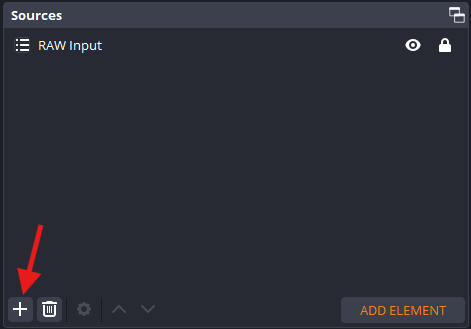
In your OBS scene, click the + button in the Sources panel and select Browser.
2. Name Your Source
Give it a descriptive name like:
Apex - Node 1DDS - TopbarLCDR - Node 2
This helps you organize scenes when you have multiple overlays.
3. Configure Browser Settings
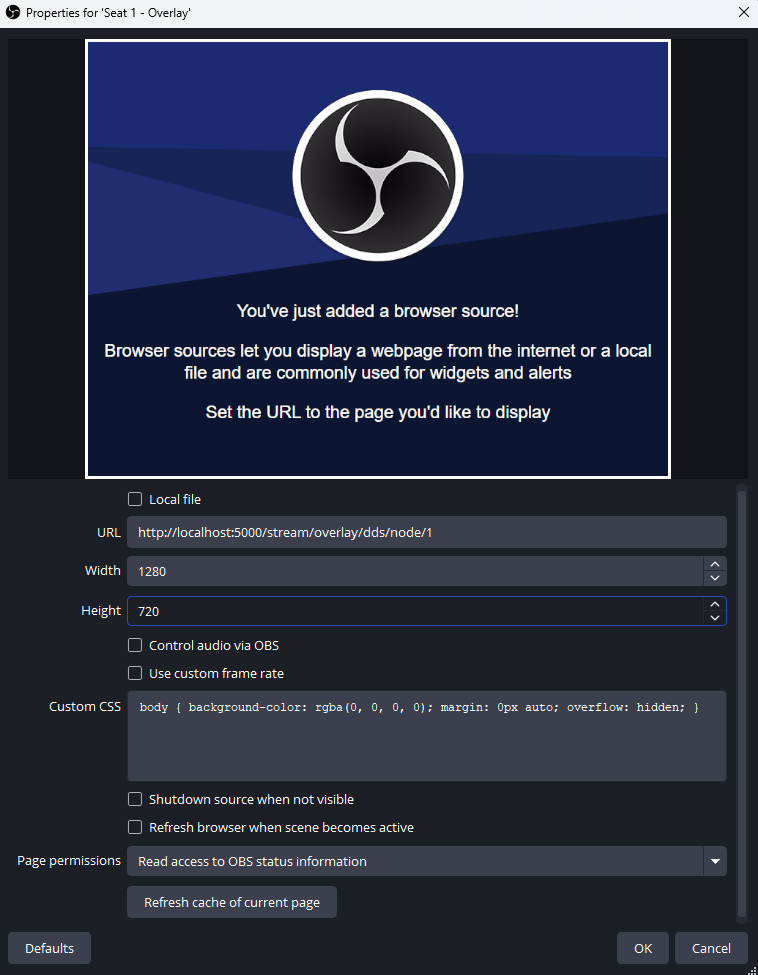
Enter these settings in the browser source properties:
| Setting | Value | Notes |
|---|---|---|
| URL | http://[RH-IP]:5000/stream/overlay/[theme]/[type] |
Get URLs from Overlay Overview |
| Width | 1920 |
Match your OBS canvas width |
| Height | 1080 |
Use 100 for topbars, or match canvas height for full-screen overlays |
| FPS | 30 or 60 |
Higher = smoother, but more CPU usage |
| Custom CSS | Keep the OBS default CSS | The default transparent background CSS keeps overlay sources transparent |
4. Review Browser Source Behavior
Keep live race overlays loaded while switching scenes so timers, websocket data, and animations stay continuous.
Leave these OBS browser source options disabled:
| Option | Why |
|---|---|
| Shutdown source when not visible | Stops the browser source while hidden, so it has to reconnect when shown again. |
| Refresh browser when scene becomes active | Reloads the overlay on scene switches, which can interrupt timers, animations, and live websocket state. |
Canvas Resolution
Match full-screen overlay sources to your OBS Base Canvas resolution:
- 1080p → 1920×1080
- 720p → 1280×720
- 4K → 3840×2160
Topbars are the exception: use a wide, low browser source such as 1920×100.
Performance Optimization
Hardware Acceleration
Enable GPU acceleration in OBS for better browser source performance:
- Go to File → Settings → Advanced
- Set Video Renderer to Direct3D 11 (Windows) or OpenGL (macOS/Linux)
- Restart OBS
Browser Source FPS
Lower FPS for less critical overlays to save resources:
- Topbars/Timers: 60 FPS (smooth animations)
- Node overlays: 30 FPS (adequate for lap updates)
- Static heat boards: 15 FPS (minimal motion)
Right-click the source → Properties → FPS to adjust.
Scene Organization
Create dedicated scenes for each overlay type to avoid running multiple browser sources simultaneously. See OBS Scene Layouts for complete production recipes, including race matrix, TrackDraw map, overview, heat board, and results scenes.
Advanced Tips
Projecting Overlays to External Display
For confidence monitors or venue screens:
- Open the overlay URL in a browser (Chrome recommended)
- Press F11 for fullscreen
- Drag window to target display
Or use OBS's Fullscreen Projector feature (right-click scene → Fullscreen Projector).
Custom Browser Dock
Add overlays as a browser dock for live monitoring:
- View → Docks → Custom Browser Docks
- Enter the overlay URL
- Name it (e.g., "Live Topbar Preview")
This gives you a real-time view without switching scenes.
Chroma Key Alternative
If you need to composite overlays differently, use Color Key filter instead of chroma:
- Add the browser source
- Right-click → Filters → + → Color Key
- Set Key Color Type to Custom
- Pick the background color (usually black)
Recommended OBS Settings
For best results with Stream Overlays:
Need Help?
Having issues with OBS? Check the OBS Setup FAQ for troubleshooting tips.
Other resources:
- Overlay Overview — Browse themes, overlay types, and URL patterns
- Advanced Guides — Build complete OBS scene collections
- Getting Started Guide — Complete setup walkthrough
- GitHub Discussions — Ask questions and get help